How to Claim Your Listing on AFFCatalog
If your company's card or your personal card is already in AFFCatalog, link it to your profile. This way you confirm that you represent this company or person and will be able to manage the card from your account.
What linking a card gives
For all cards
- The card is officially linked to you. One card can have only one owner.
- The Claimed label appears on the card. It shows users that the information has been verified by a representative, not just the editorial team. Cards with this label can be found through the 'Claimed' filter in the catalog.
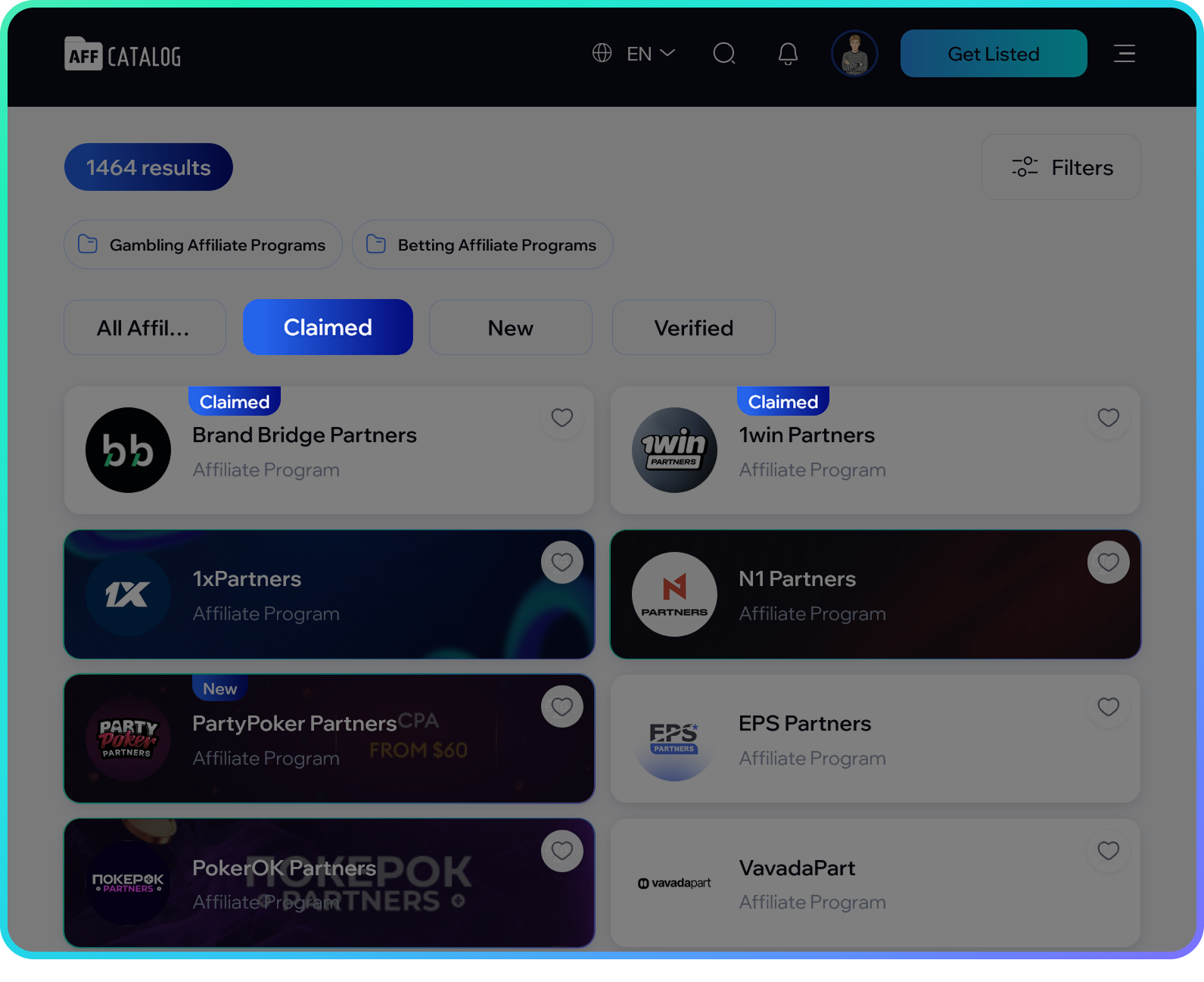
The 'Claimed' filter in the partner catalog
- The card appears in the 'My cards' section. From there, its status is visible and management is opened.
For a company card
With the Pro plan, you can:
- edit the card yourself - up to 2 times a week, without contacting the AFFCatalog team;
- respond to reviews on behalf of the company;
- view card analytics: traffic, visibility, and user actions;
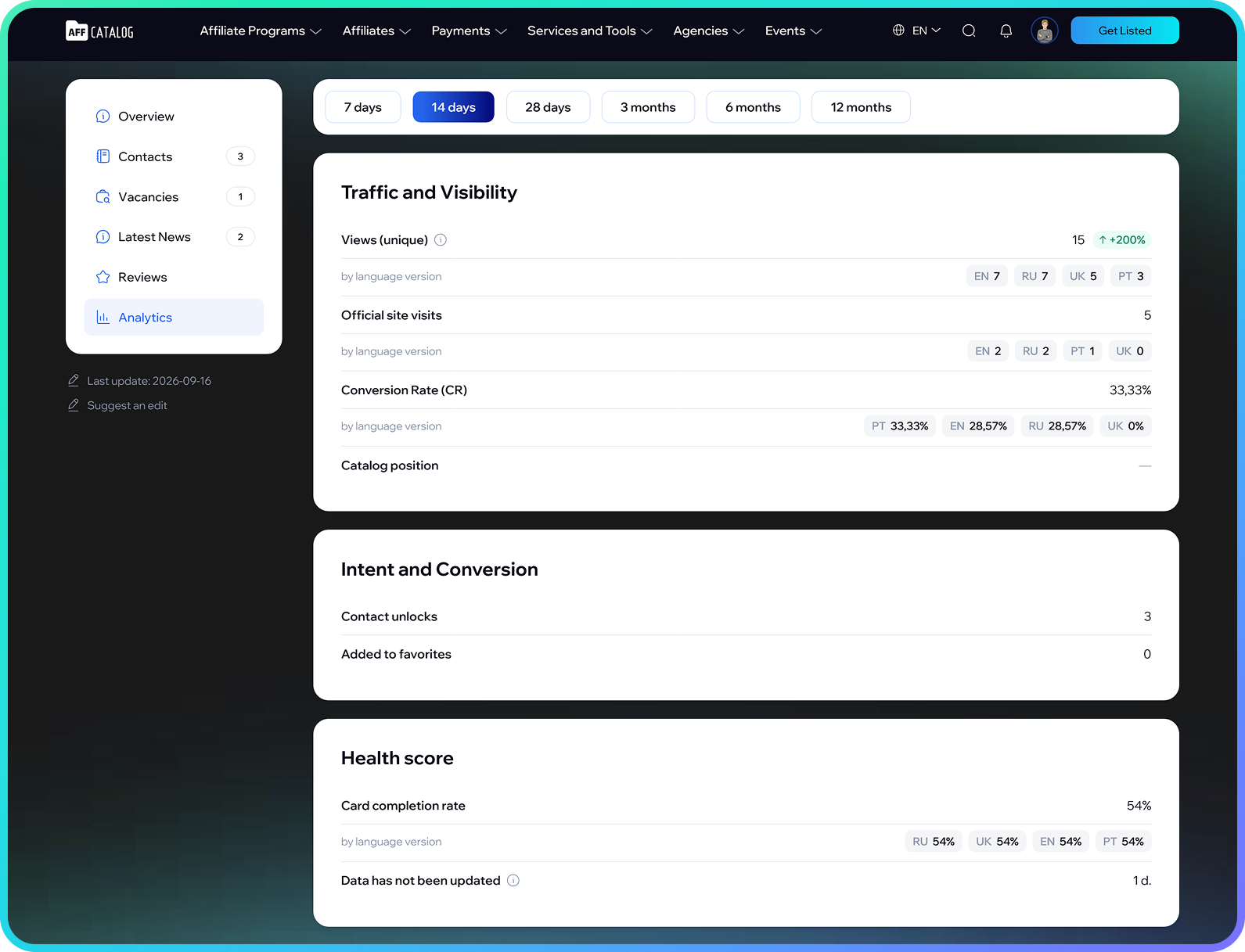
'Analytics' tab of the card: traffic and visibility, intent and conversion, Health-score
- publish company press releases;
- set your affiliate link with UTM tags in the call-to-action button.
For a person's card
With the ContactPlus plan or higher, you can:
- edit your card yourself - up to 2 times a week;
- set the 'Open to Work' label if you are looking for a new role.
Without a paid plan, the card still belongs to you. In this case, you can make changes through the 'Suggest edits' button on the card.
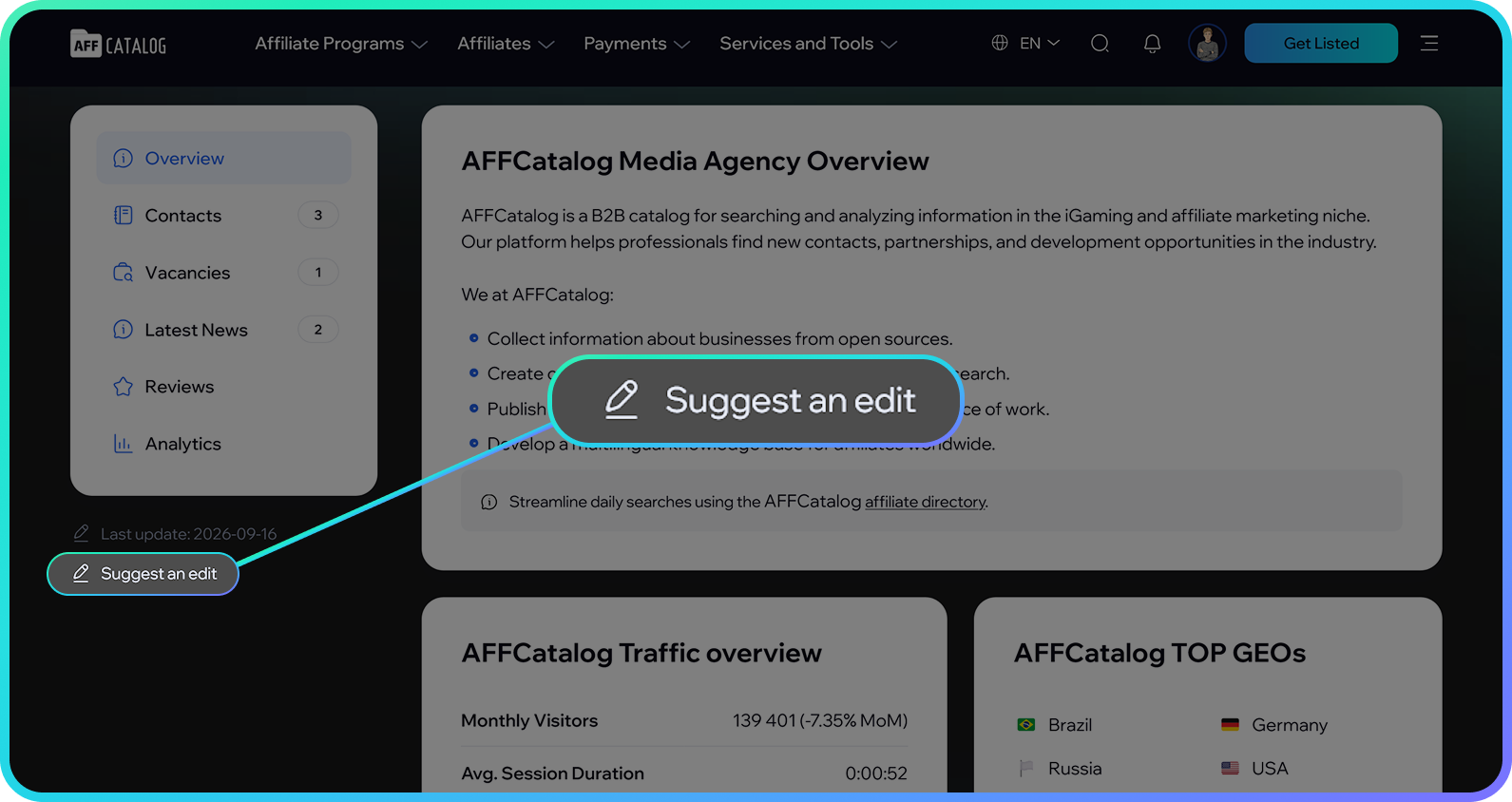
'Suggest edits' button under the card menu
What you need before you start
- An account on AFFCatalog. Register or log in.
- The card is already in the catalog. Find it through the search on the site. If the card is not there, you can create it (see 'Frequently Asked Questions').
- Access to one of the verification methods:
- corporate email on the site's domain;
- verified LinkedIn profile;
- Telegram account.
Available verification methods
- Corporate email (For Companies). A code or link for verification will be sent to the email. If the email domain matches the site's domain on the card, the card will be linked automatically in a few minutes.
- LinkedIn (For Individuals). Two conditions are mandatory: the LinkedIn profile must have Verified status, and you must authorize on AFFCatalog through LinkedIn. The profile data is compared with the person's card. The application may be additionally reviewed by a manager.
- Telegram (If other methods are not suitable). The application is reviewed by AFFCatalog manager.
How to link a card: step-by-step instructions
Step 1. Open 'My cards'
Log in to your account, go to the 'My cards' section, and click the 'Add +' tile.
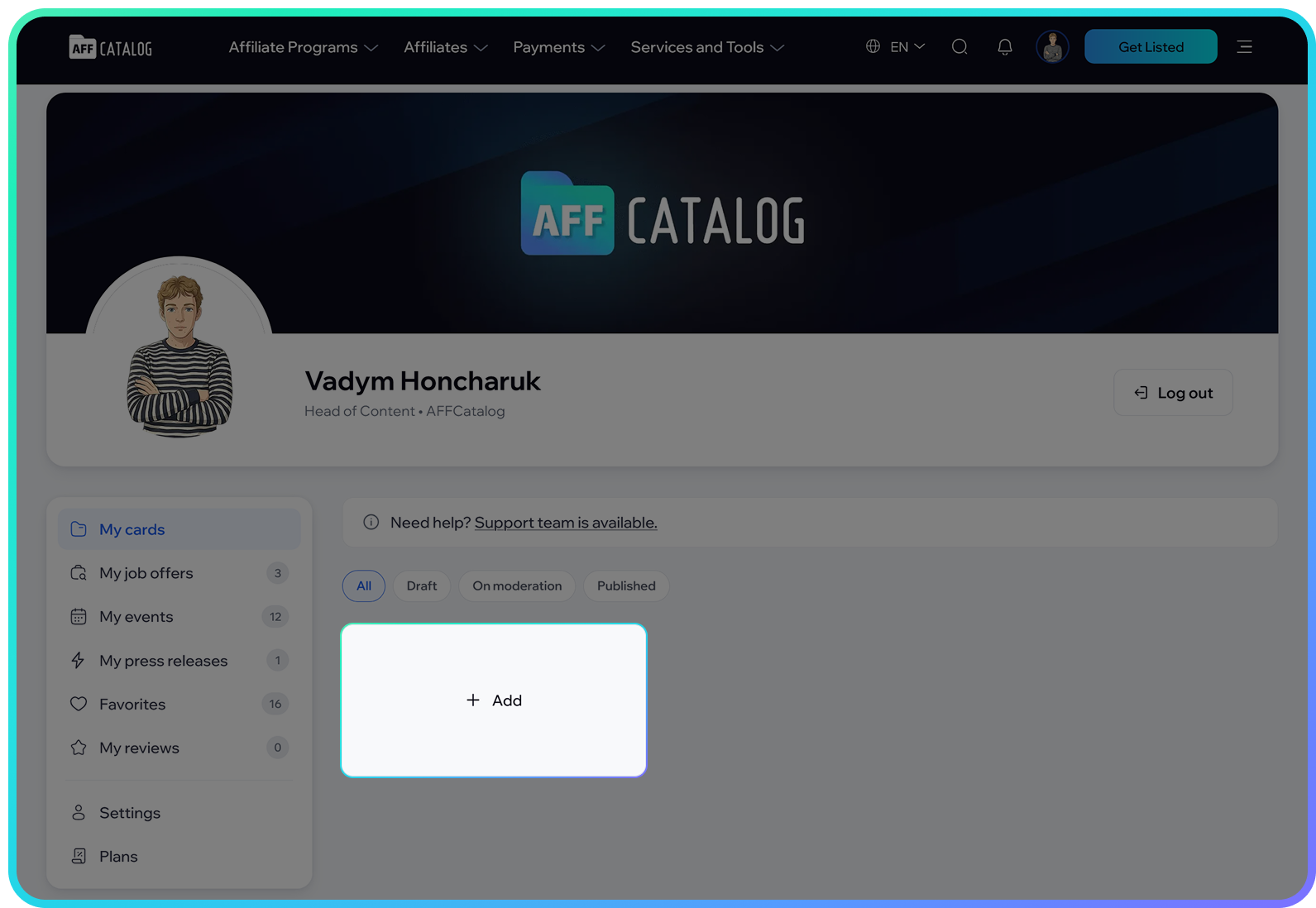
'My cards' section with 'Add' button
Step 2. Choose 'Link'
In the 'Add card' window, click 'Link'. The 'Create' button is for a new card that is not yet in the catalog.
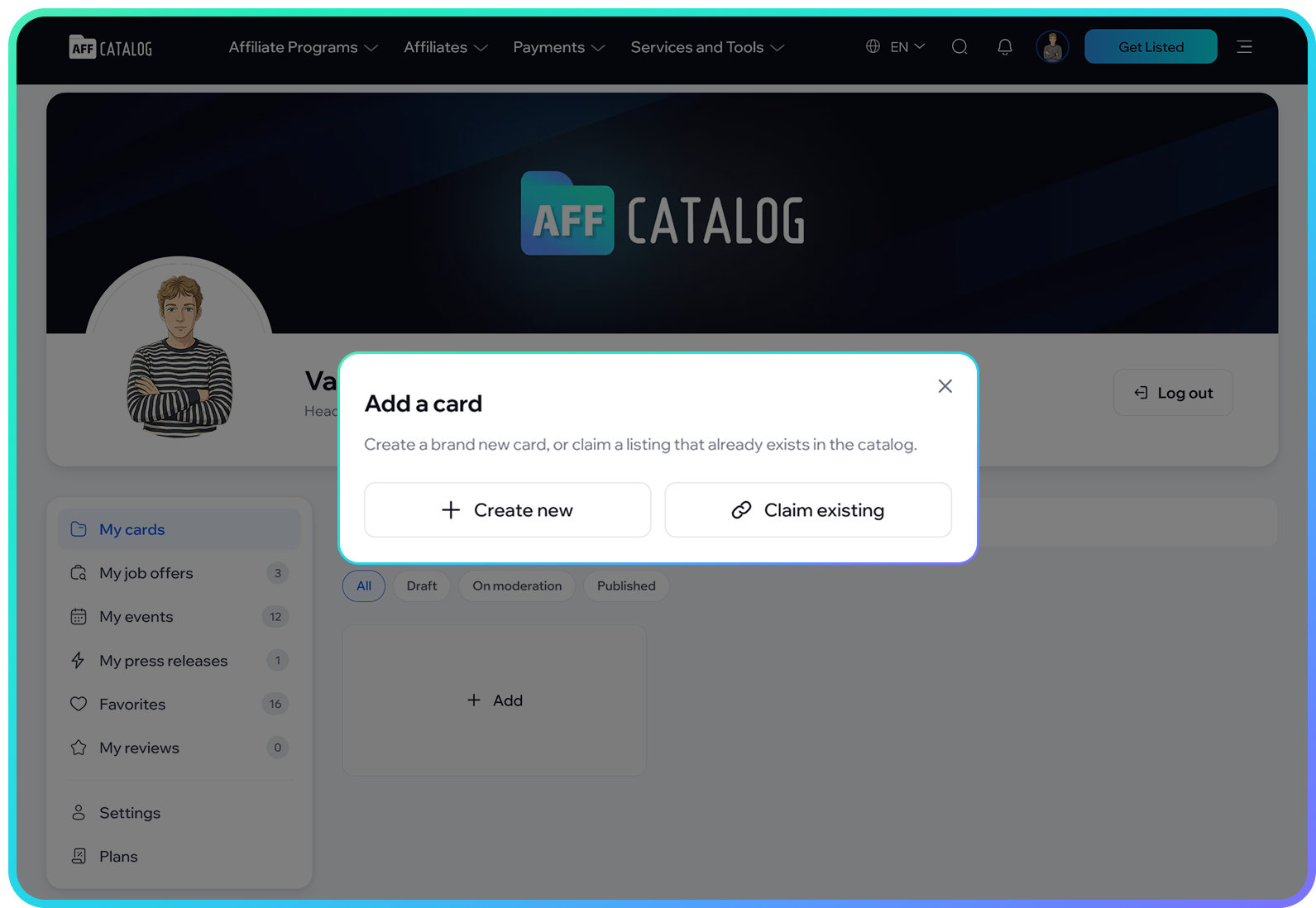
'Add card' window: 'Create' or 'Link'
Step 3. Fill out the application
The page 'Link an existing card' with the 'New application' form will open:
- Start typing the card name in the 'Find listing' field and select it from the list.
- Choose the verification method in the 'Verification method' field.
- Fill in the field for the selected method, for example, corporate email.
- If desired, add a comment (up to 1000 characters). It will help the manager if the application needs to be reviewed manually.
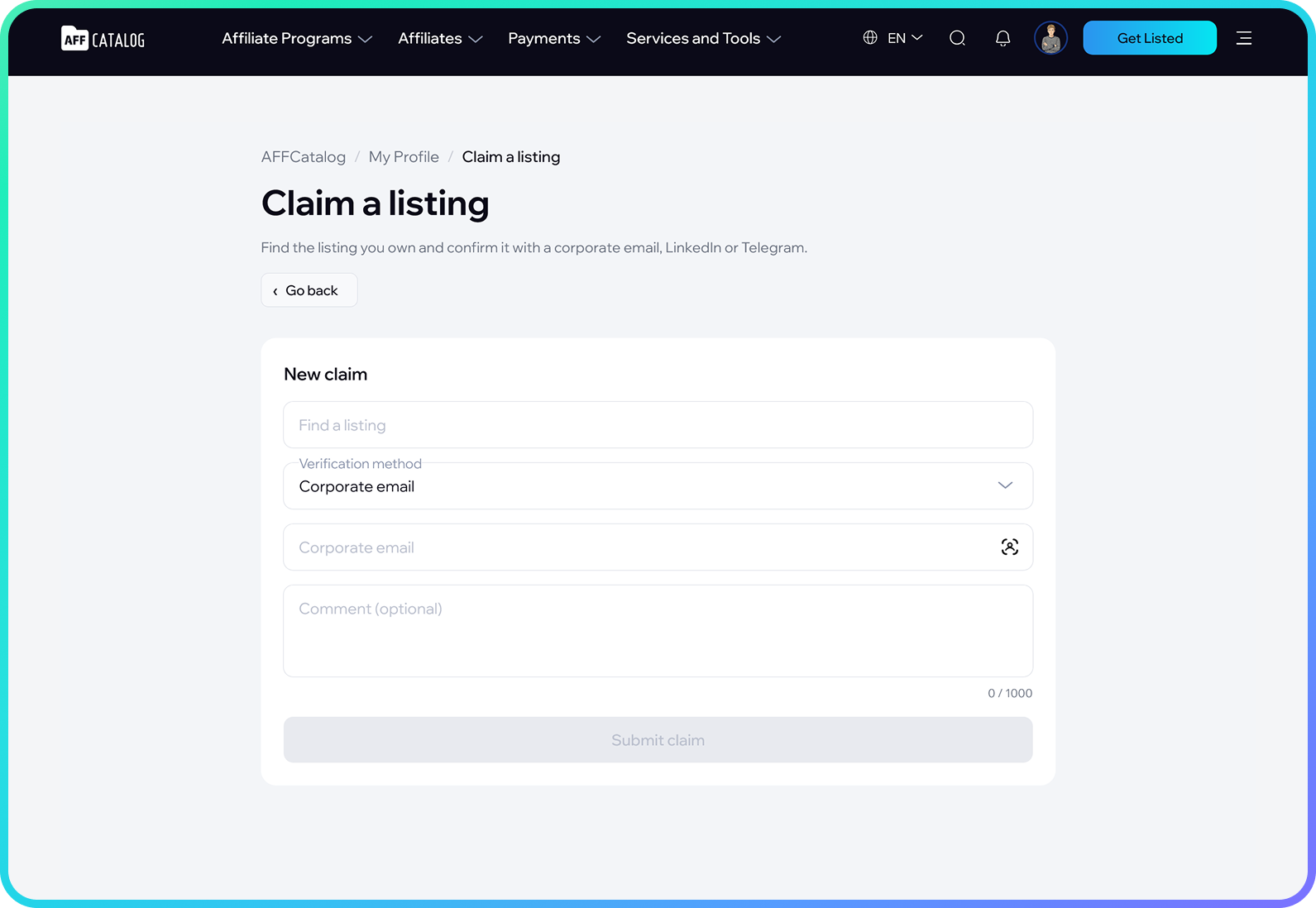
Card linking application form
Step 4. Submit the application and confirm your rights
Click 'Submit application'. The button will become active when all required fields are filled out.
- Corporate email. Open the email from AFFCatalog and enter the code or follow the link.
- LinkedIn. Authorize on AFFCatalog through your LinkedIn account. The LinkedIn profile must be verified (Verified), otherwise the rights will not be confirmed.
- Telegram. Wait for the manager's decision.
After confirmation, the card will appear in the 'My cards' section and will receive the Claimed label.
Frequently Asked Questions
How long to wait for confirmation?
Through corporate email - a few minutes after entering the code. Applications being reviewed by a manager are processed within 24 hours. If the card is already linked to someone, it may take up to 2 business days.
I did not receive the email with the code. What to do?
Check that the email domain matches the site's domain on the card. For example, for the site brand.com, you need an address at @brand.com. If the domains do not match, the email will not be sent. Also, check the 'Spam' folder.
The code is not accepted.
The code is valid for a limited time. After five unsuccessful attempts, it will be blocked - submit the application again to receive a new one.
My LinkedIn profile is not verified. Can I confirm my rights through LinkedIn?
No. For this method, the LinkedIn profile must be verified (Verified), and you need to log in to AFFCatalog through LinkedIn. Verify your LinkedIn profile or choose another method - corporate email or Telegram.
The company's website and email are on different domains.
Choose another verification method (LinkedIn or Telegram) or contact support@affcatalog.com.
The card is already linked to another person.
If you select such a card, you will see a warning. You can submit the application, but it will only be reviewed manually, up to 2 business days.
My card is not in the catalog.
In 'My cards', click '+ Add' -> 'Create' and fill out the card. A draft can be created for free. Publishing a company card is paid separately (Page Setup).
My application was rejected. Can I submit it again?
Contact support@affcatalog.com. The support team will review your situation.
Can a linked card be deleted?
No, you cannot delete the linked card yourself. To delete a card, contact support@affcatalog.com.
What will happen to the card if I delete my profile?
The card will not be deleted: it will be transferred to AFFCatalog management.
The card is linked, but I cannot edit it.
Self-editing is available with a paid plan: Pro for companies, ContactPlus or higher for individuals. Choose a plan in the 'Rates' section of your account or use the 'Suggest edits' button on the card.
Still have questions? Contact support@affcatalog.com - the support team is on hand.